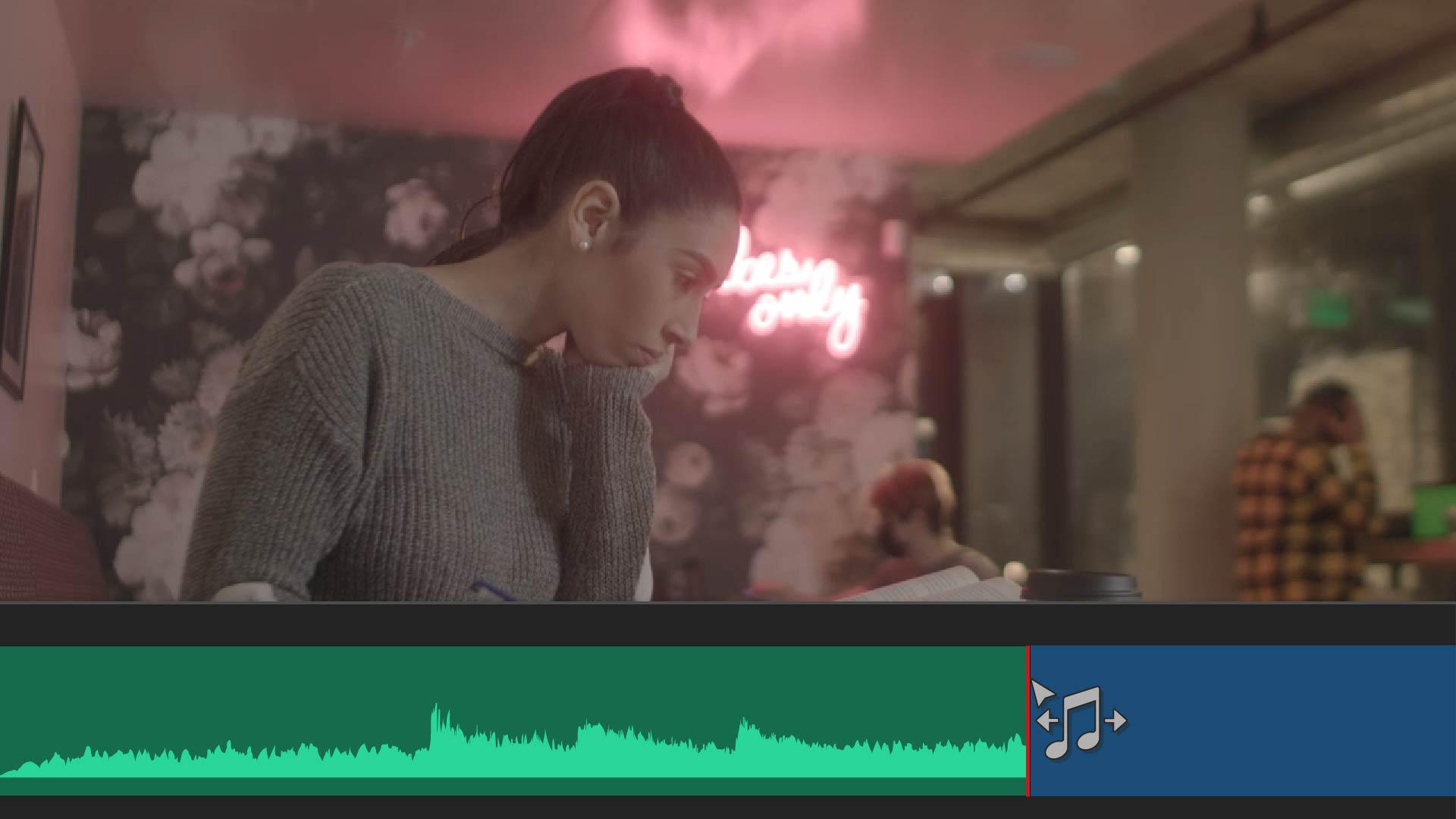
Premiere Pro · Beginner audio lesson
Audio basics in Premiere Pro
Start with Adobe's short video on reading audio waveforms, matching clip loudness with Essential Sound, and fitting music to your edit with Remix.
Watch Adobe's tutorialOxford Preparatory Academy
Find what you need. Make something real.
Your class work
Open your class for project guides and lesson slides. Turn in assignments and check grades and deadlines in Canvas.
Today
Loading classes…
Exploratory Digital Media
Today’s lesson slides and every earlier lesson this class has covered — open a day below if you missed it.
Today
Loading lessons…
Intro to Digital Media
Today’s lesson slides and every earlier lesson this class has covered — open a day below if you missed it.
Today
Loading lessons…
Advanced Digital Media
Open your project to see your next steps and weekly posts. Find today’s lesson slides and earlier lessons below.
Project trackerToday
Loading lessons…
How do I do this?
Find tutorials, animation tools, and design guides to help you make your next project.
SketchUp for Schools → Twinmotion
Follow these three videos in order. Pause each video to try the steps on your own design before moving on.
Learn to create a 2D architectural floor plan in SketchUp for Schools using accurate measurements.
Watch on YouTubeConvert your floor plan into a 3D building by adding walls, doors, windows, and architectural details.
Watch on YouTubeImport your completed SketchUp model into Twinmotion to add realistic materials, lighting, environments, and cinematic camera movements.
Watch on YouTube
Premiere Pro · Beginner audio lesson
Start with Adobe's short video on reading audio waveforms, matching clip loudness with Essential Sound, and fitting music to your edit with Remix.
Watch Adobe's tutorial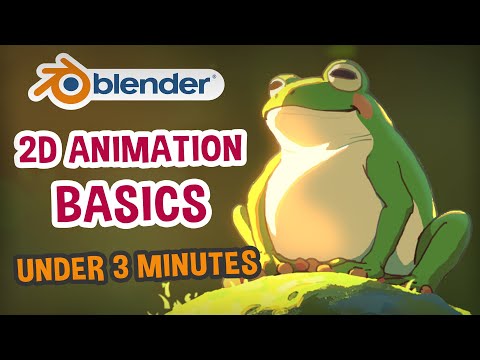
Blender · Beginner tutorial
Learn the basics of drawing and animating with Grease Pencil in this guide from PolyPaint.
Watch on YouTube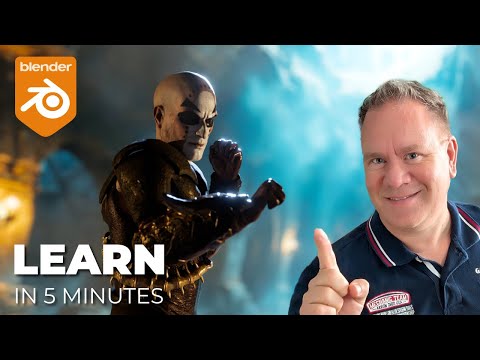
Blender · Import and animation
Download a character and animation from Mixamo, import them into Blender, and combine animation clips in this guide from MediaWay.
Watch on YouTube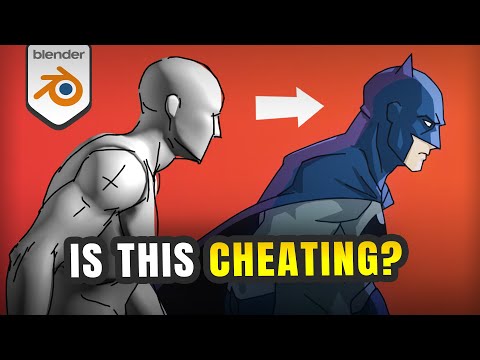
Blender · Grease Pencil and Mixamo
Use a 3D model and Mixamo motion to build a 2D animation with Grease Pencil in this guide from PolyPaint.
Watch on YouTube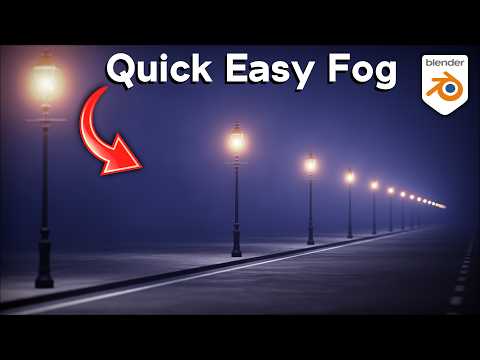
Blender · Fog and atmosphere
Add fog to a Blender scene in this tutorial from Ryan King Art.
Watch on YouTube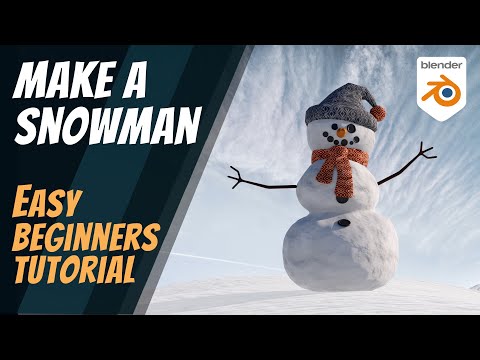
Blender · Beginner tutorial
Follow Grant Abbitt's beginner tutorial to make a snowman in Blender.
Watch on YouTubePremiere Pro · Audio levels guide
Use Adobe's Audio Meters guide to check your mix as it plays. Keep voices easy to hear, lower music when someone speaks, and turn down audio that peaks into the red.
Need to change a clip's volume? See Adobe's quick audio controls in the Properties panel.
Read the levels guideFilmmaking · Beginner framing guide
Learn how to arrange a shot with this short illustrated guide from the British Film Institute on FutureLearn. Try the rule of thirds, keep your shot level, and check the edges of the frame before recording.
Read the framing guide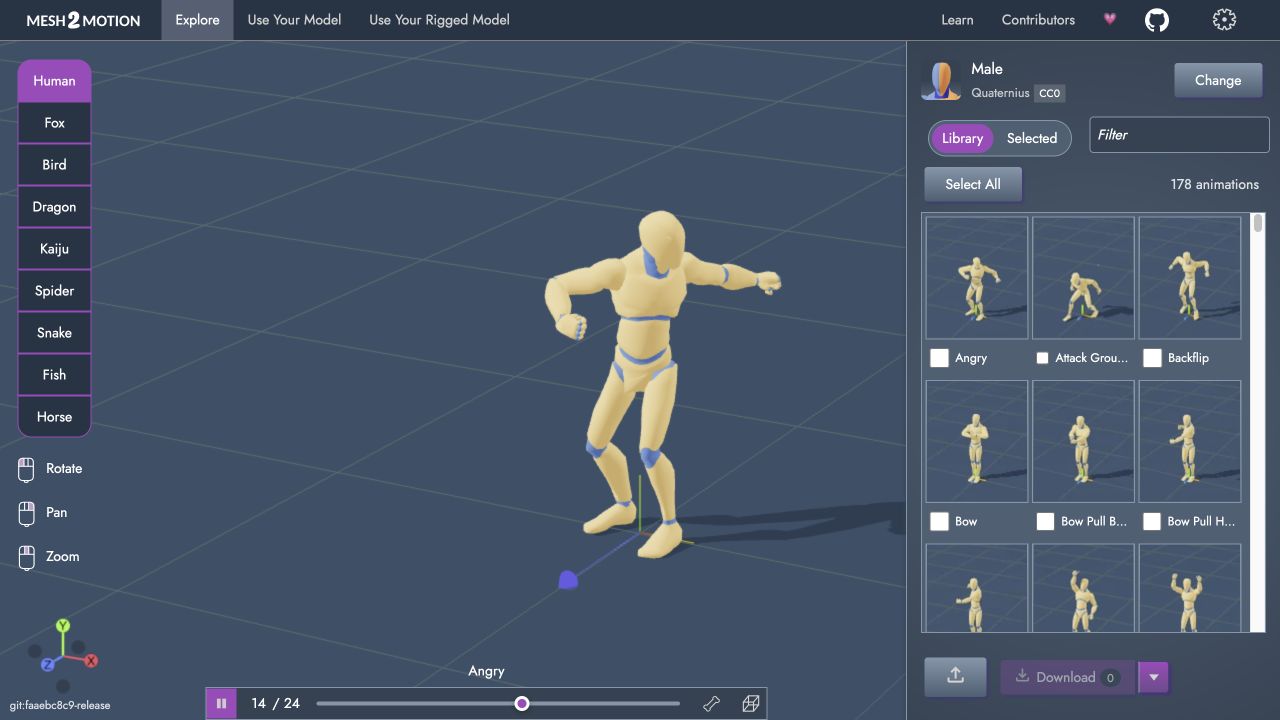
3D animation · Browser tool
Add a skeleton and animations to your 3D model, then export it for your project.
Open Mesh2MotionUse color and typography to make your message clear.
Tutorials / Resources / Class Apps
Download only the app your teacher assigns.
Ready / Mac
Sample colors, build palettes, and check contrast.
Download ↓ Version 0.2.0 · macOS 13+Teacher testing
Closes Adobe tools, then clears temporary cache files.
Coming soon A signed classroom release is required before student use.Teacher testing
Save approved video or audio for class projects.
Coming soon Use only media you made, have permission to use, or your teacher approved.Install on a classroom Mac
Design Guides / Color
Use color to create mood, organize information, guide attention, and make the message easier to understand.
Three controls
The color family: red, orange, yellow, green, blue, or violet.
How intense or muted the color feels.
How light or dark the color is. Value creates readable contrast.
Color relationships
One hue changed through tints, shades, or saturation.
Neighboring hues. Related, calm, and easy to unify.
Opposite hues. Strong contrast—choose one color to lead.
Three evenly spaced hues. Energetic, so control the saturation.
Color roles
A 60 / 30 / 10 split is a useful starting point, not a rule.
Dominant / 60% Sets the overall mood and fills the largest areas.
Support / 30% Separates sections and strengthens the system.
Accent / 10% Pulls attention toward the most important action.
Before you finish
Limit it. Start with three to five colors.
Check value. Make sure important elements still separate in grayscale.
Read it. Text and background need strong contrast.
Do not rely on color alone. Add labels, icons, shapes, or patterns.
Repeat roles. Use the same color for the same job throughout the work.
Color Lab
Start with one color. Then test what changing its hue, saturation, and value actually does.
Blue
Palette relationship
Neighboring hues feel related and easy to unify.
Readability
Important information needs contrast.
Free class tool / macOS
Sample any color on your screen, build useful palettes, check accessible pairs, and carry colors into other Mac apps.
Install
This is a direct classroom build, so macOS may ask for approval the first time. If needed, use System Settings → Privacy & Security → Open Anyway.
Practice
Design Guides / Typography
Typography tells people what to notice first, what supports it, and what they need to read all the way through.
Three jobs
Pick a typeface that matches the message. Two families are usually enough.
Use size, weight, and position to show what matters first.
Give letters, lines, and blocks room to breathe so the work can be read.
Interactive practice
Change one decision at a time. Watch the slide, then read what changed.
But not as cool as Coach Alex.
Poster system / 2026Current read
Voice
Color
Practice
Curated examples
Selected projects show strong choices, useful process, and finished work. Nothing is published without permission and context.
Featured project presentation
Madeline De la O / Polar Bear Animation / 2025-26
Every project includes a presentation that makes the thinking visible: purpose, process evidence, response to a challenge, the current finished version, and what the student learned next.
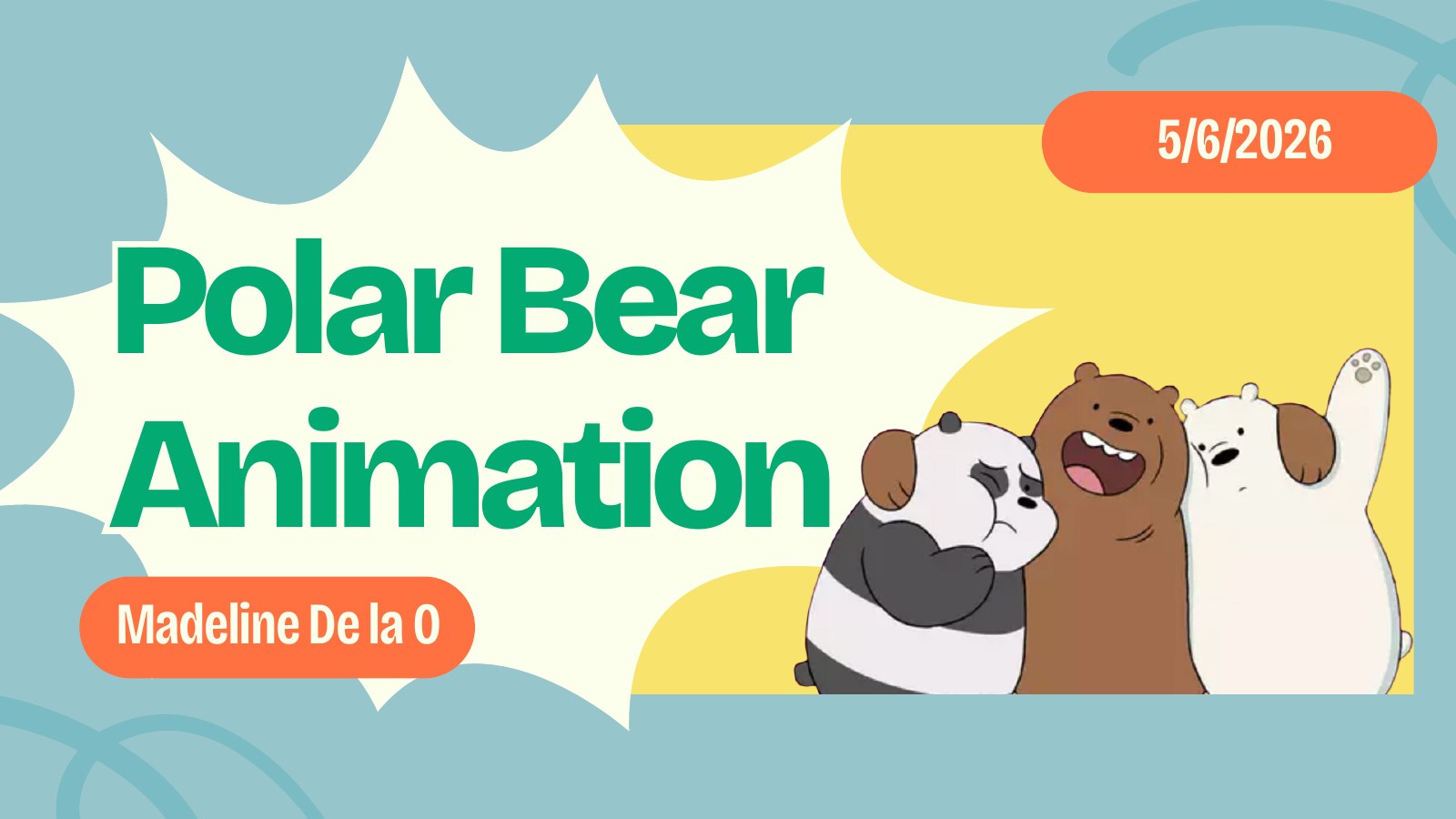
01 / 11
Student portfolios
Start with a student’s personal logo, then explore the projects, creative choices, and reflections in their portfolio.
Return to the mapLook outward
Explore artists, designers, studios, champion profiles, and other references worth studying—not copying.
New inspiration will appear here.
Made by students
OPA TV is our student-run show. Crews plan it, shoot it, and edit it themselves. Season 2 just kicked off, so grab a seat.
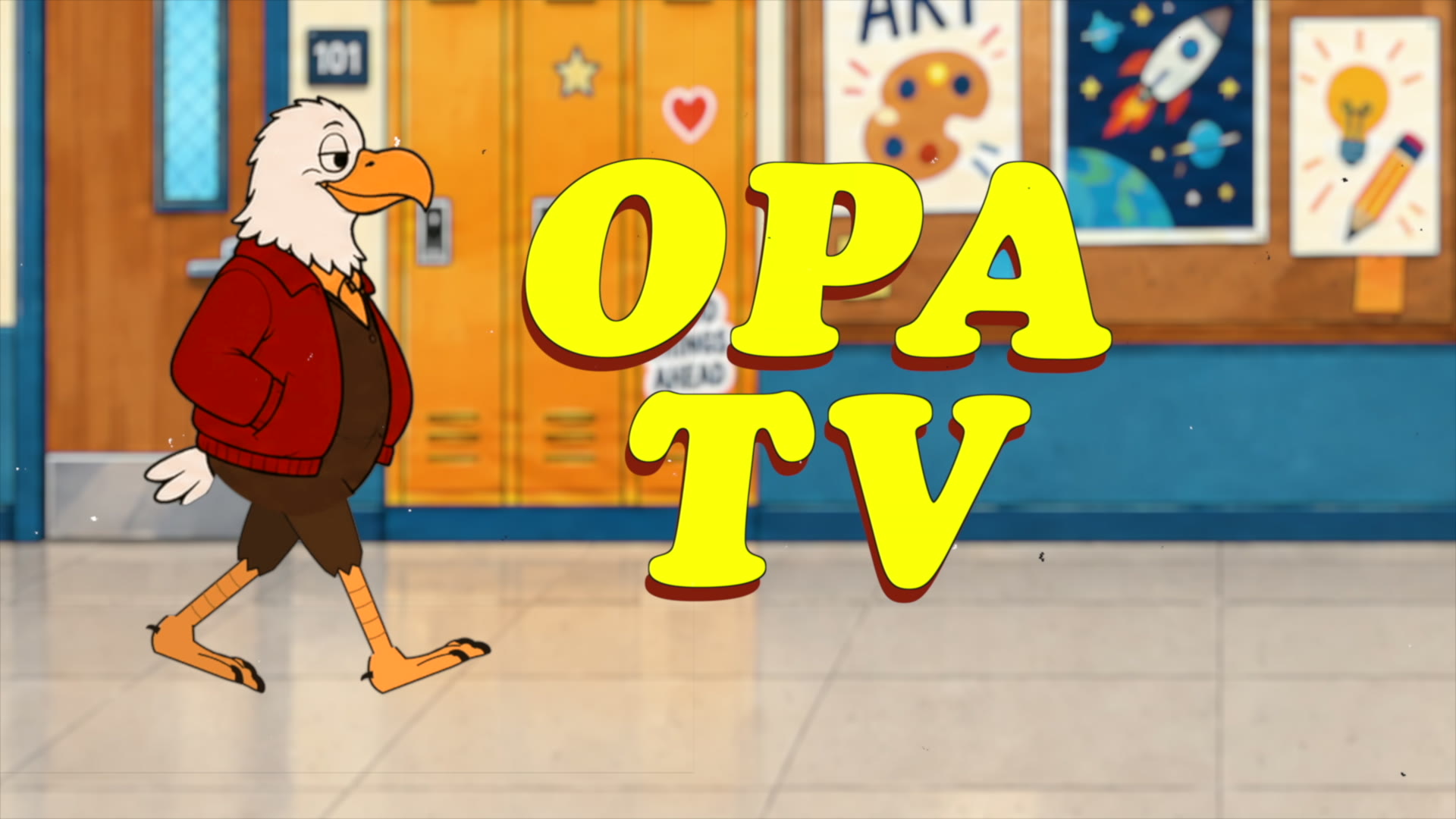 ▶
2026–27 / Season 2
Watch OPA TV Season 2.
Open Season 2 →
Watch Season 1 episodes 🔒
Open OPA TV Production 🔒
Return to the map
▶
2026–27 / Season 2
Watch OPA TV Season 2.
Open Season 2 →
Watch Season 1 episodes 🔒
Open OPA TV Production 🔒
Return to the map